Get started
This takes about ten minutes. You'll create a router, send it a request, and check how that request was routed. Anything that needs a decision links to a guide, so you can follow the short path now and come back to tune later.
Routers are created and configured in the Emissary dashboard. For now, the initial setup can't be done through the API. Once a router exists, you call it through the gateway API.
Before you begin
- An Emissary account. Sign in at withemissary.com.
- An API key for each provider whose models you want in the router, for example Anthropic, OpenAI, or OpenRouter. Keys are stored encrypted and never returned to the browser.
- An Emissary platform API key, found under Settings → Credentials. You'll use it to call the gateway.
1. Create a router
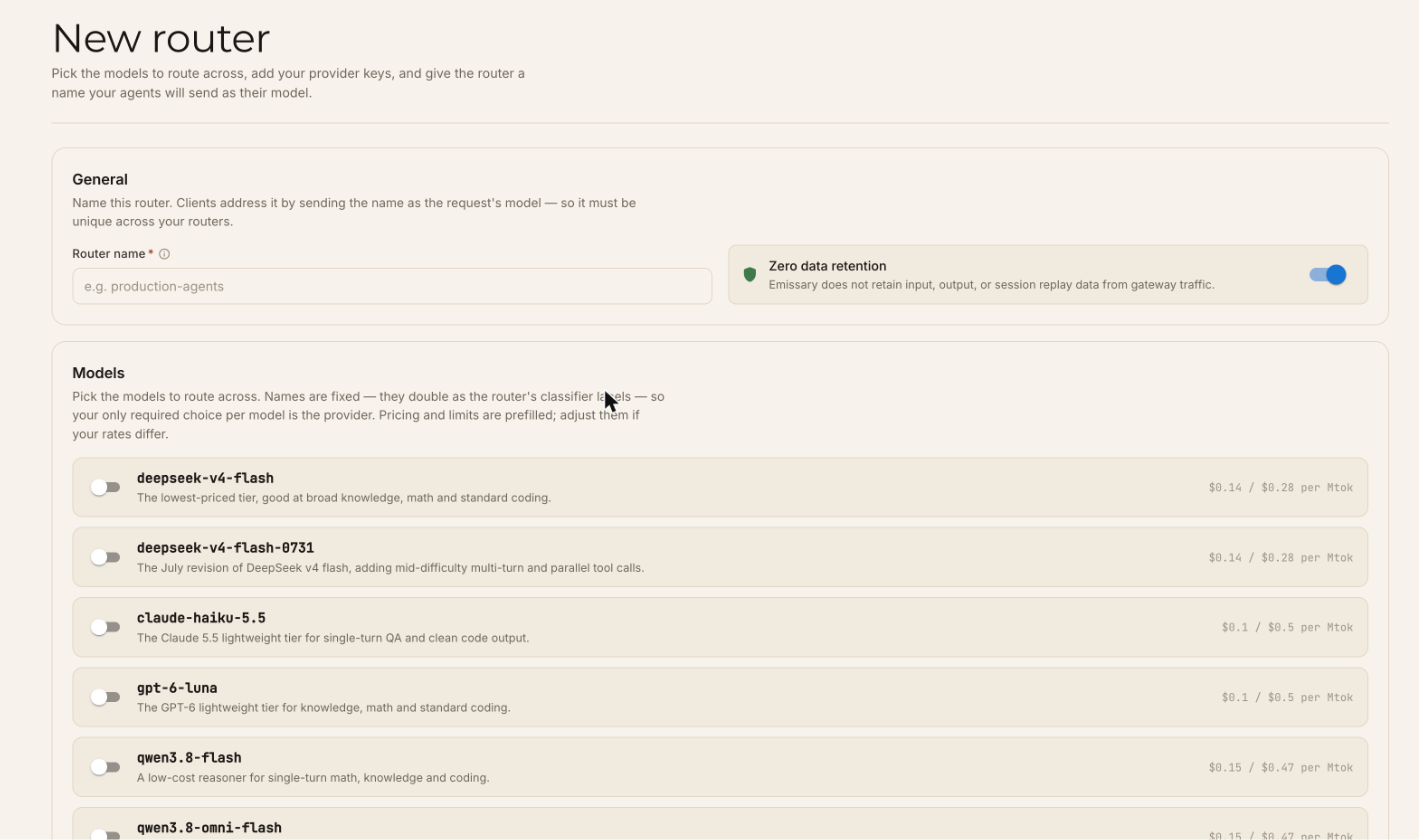
In the dashboard, open Router and click New router.
- Name it. Clients select a router by sending its name as the request's
model, so it must be unique across your routers, for exampleproduction-agents. - Choose data retention. Zero data retention is on by default: Emissary does not retain input, output, or session replay data from gateway traffic, only routing decisions, token counts, and cost telemetry. To get the most out of routing, turn zero data retention off. Stored traffic is what lets you replay sessions, and it's the raw material for what emerges from routing: a view of your workload, dedicated inference, and post-training on your own trajectories.
- Pick the models to route across. Toggle on each model you want and choose its provider. Not sure which? Start from a power package.
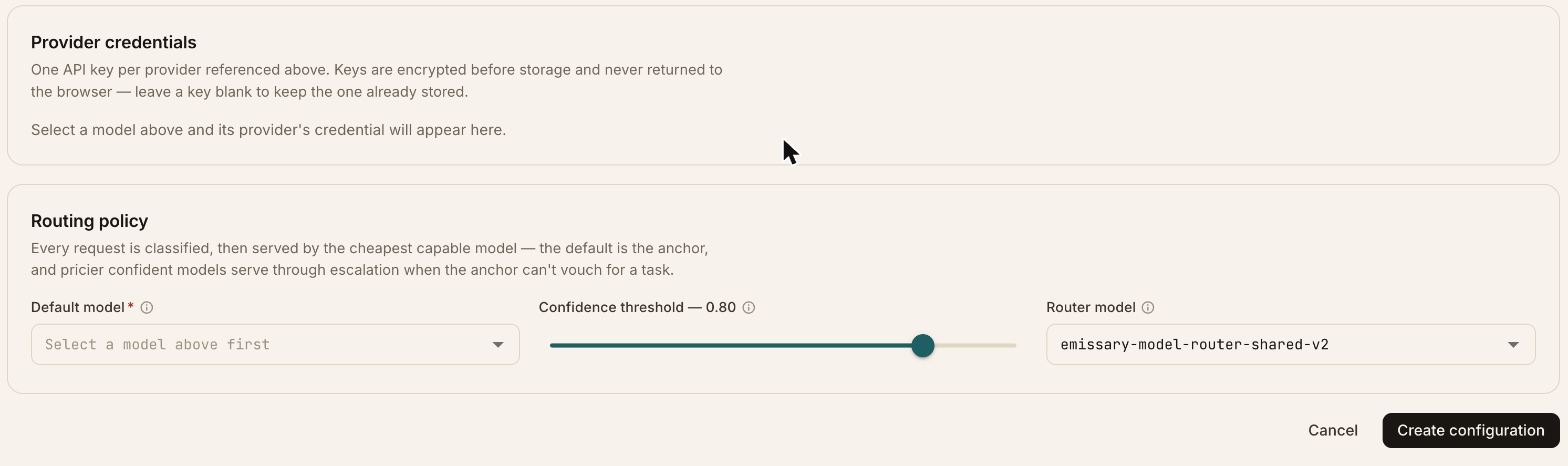
- Add provider credentials. A key field appears for each provider your selected models use. For open-source models, Emissary currently invokes them through OpenRouter. Select OpenRouter, and if you'd rather use a different gateway, change the base URL to point to it.
- Set the routing policy. Choose a default model and leave the confidence threshold at its default of 0.80 for now. See choose your models and set the confidence threshold.
- Click Create configuration.
2. Send a request
Send your router's name as the model, with your Emissary platform API key. Edit the fields
below, then click Run to send a request from this page, or Copy curl to run it in a terminal.
curl https://api.withemissary.com/gateway/v1/chat/completions \
  -H "Content-Type: application/json" \
  -H "Authorization: Bearer YOUR_EMISSARY_API_KEY" \
-d '{"model":"production-agents","messages":[{"role":"user","content":"Hello!"}]}'The gateway is compatible with the OpenAI and Anthropic APIs. For the OpenAI and Anthropic SDKs, Go, Node.js, and coding agents such as Claude Code, see connect an app or agent.
3. See how it was routed
Open your router in the dashboard and go to Activity. Click into a request to see each model's confidence and the reason the router chose the model it did. See monitor and debug.
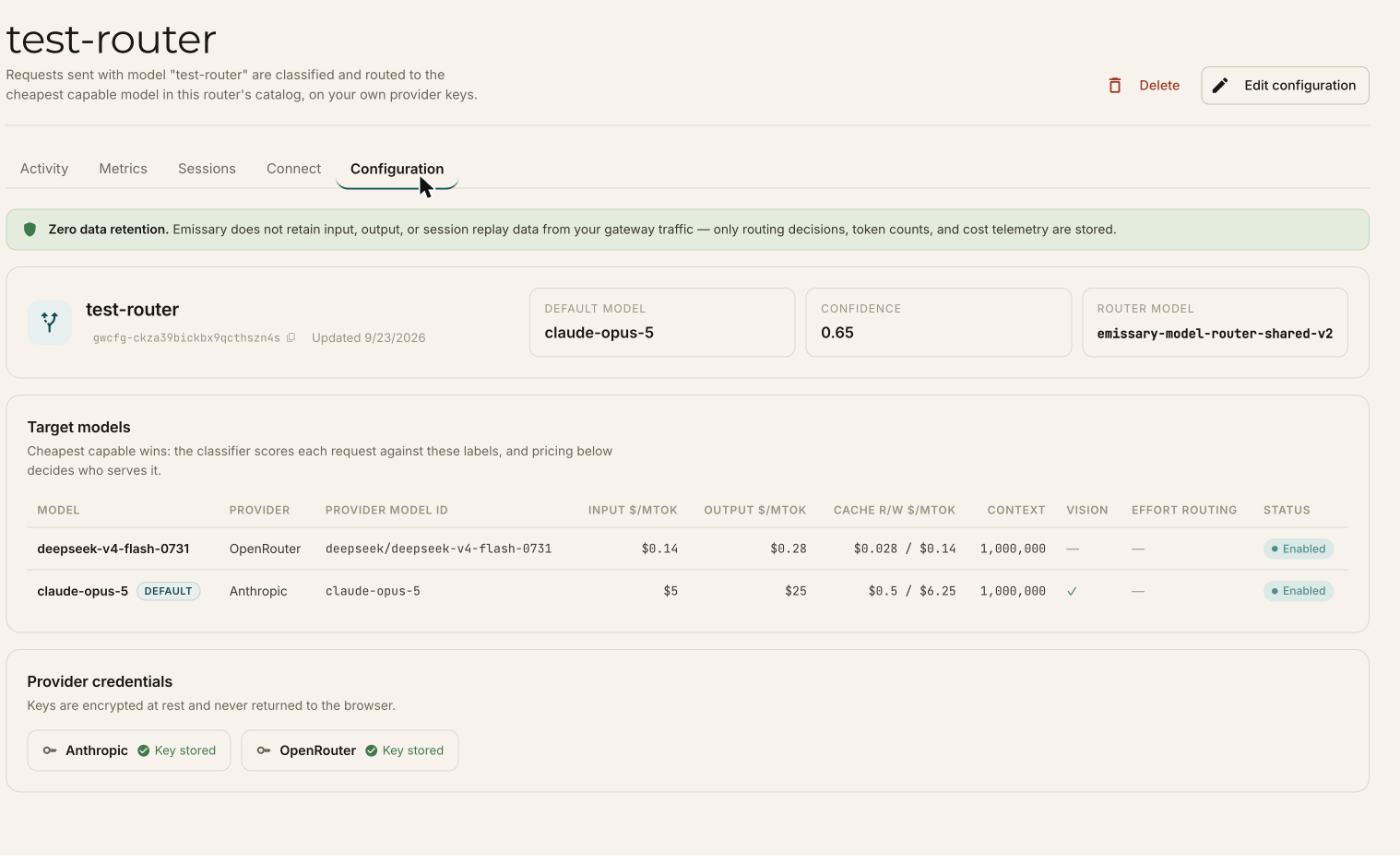
The router's Configuration tab shows what you set up, including each target model's pricing and which provider keys are stored. You can also edit it there: change the default model, add or remove models, and change the confidence threshold.
Next steps
- How a routing decision is made explains what you just saw in Activity.
- Run a trial on your traffic before moving production traffic.
- When to route, and when not to if you're not sure routing fits a given part of your system.