Named Entity Recognition (NER)
1. Objective
This guide provides step-by-step instructions on fine-tuning a model for Named Entity Recognition tasks on Emissary using our novel NER approach. In this approach, we add a token classification head on top of the base LLMs that returns probabilities for a each tokens. We recommend using Qwen3-4B-Base for this task.
2. Dataset Preparation
Prepare your dataset in the appropriate format for the NER task.
NER Data Format
Each entry should contain:
- prompt: The input text from which named entities should be extracted.
- completion: A JSON-serialized string containing a dictionary that maps entity type names to lists of entity mentions found in the prompt. Each key is an entity type, and each value is an array of matched entity strings. Use an empty array [] for entity types with no mentions in the given prompt.
{
    "prompt": "This is a sample text for NER task.",
    "completion": "{\"Entity_Type_A\": [\"sample\"], \"Entity_Type_B\": [\"NER task\"], \"Entity_Type_C\": []}"
}
3. Finetuning Preparation
Please refer to the in-depth guide on Finetuning on Emissary here - Quickstart Guide.
Create Training Project
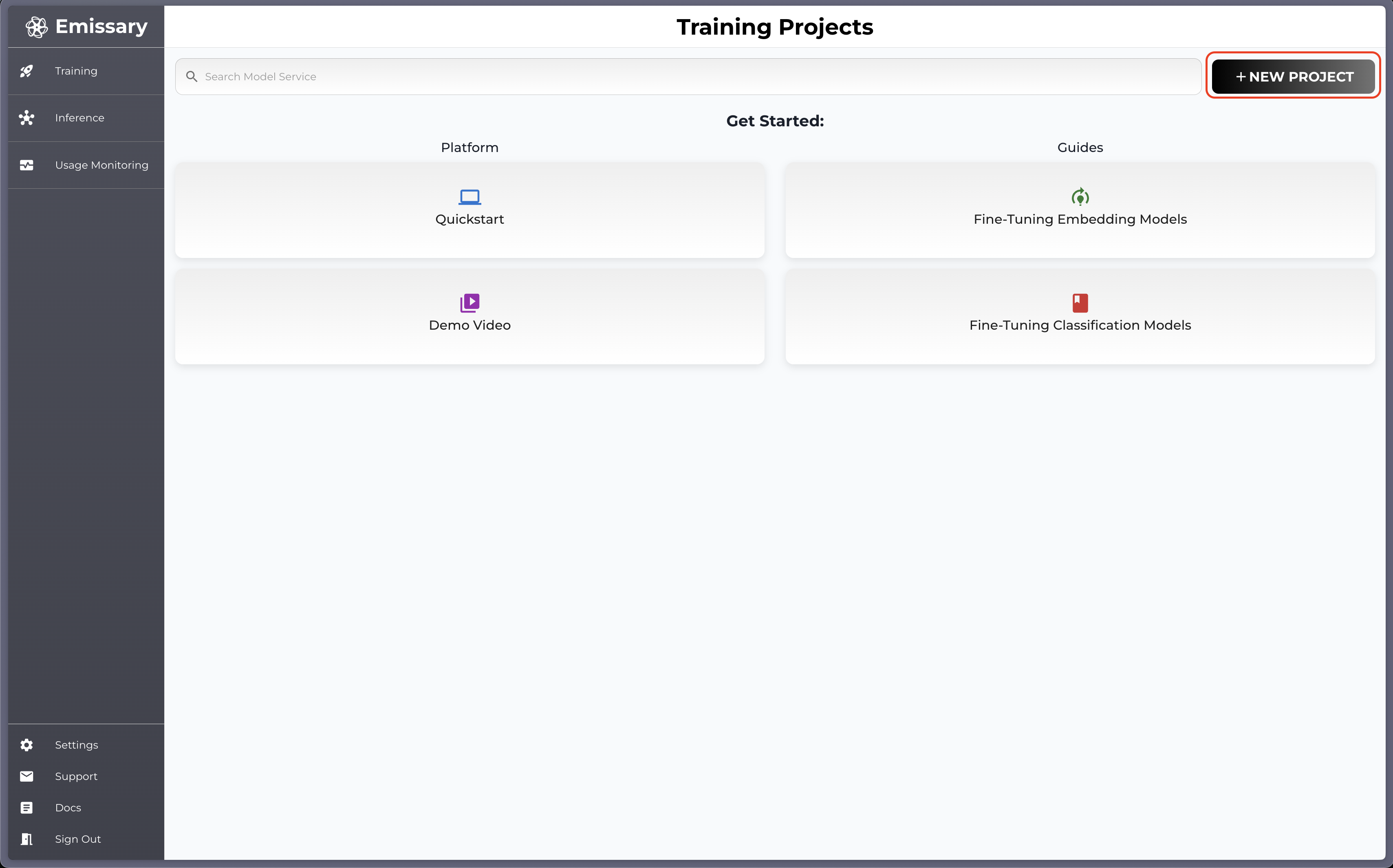
Navigate to Dashboard arriving at Training, the default page on the Emissary platform.
-
Click + NEW PROJECT in the dashboard.
-
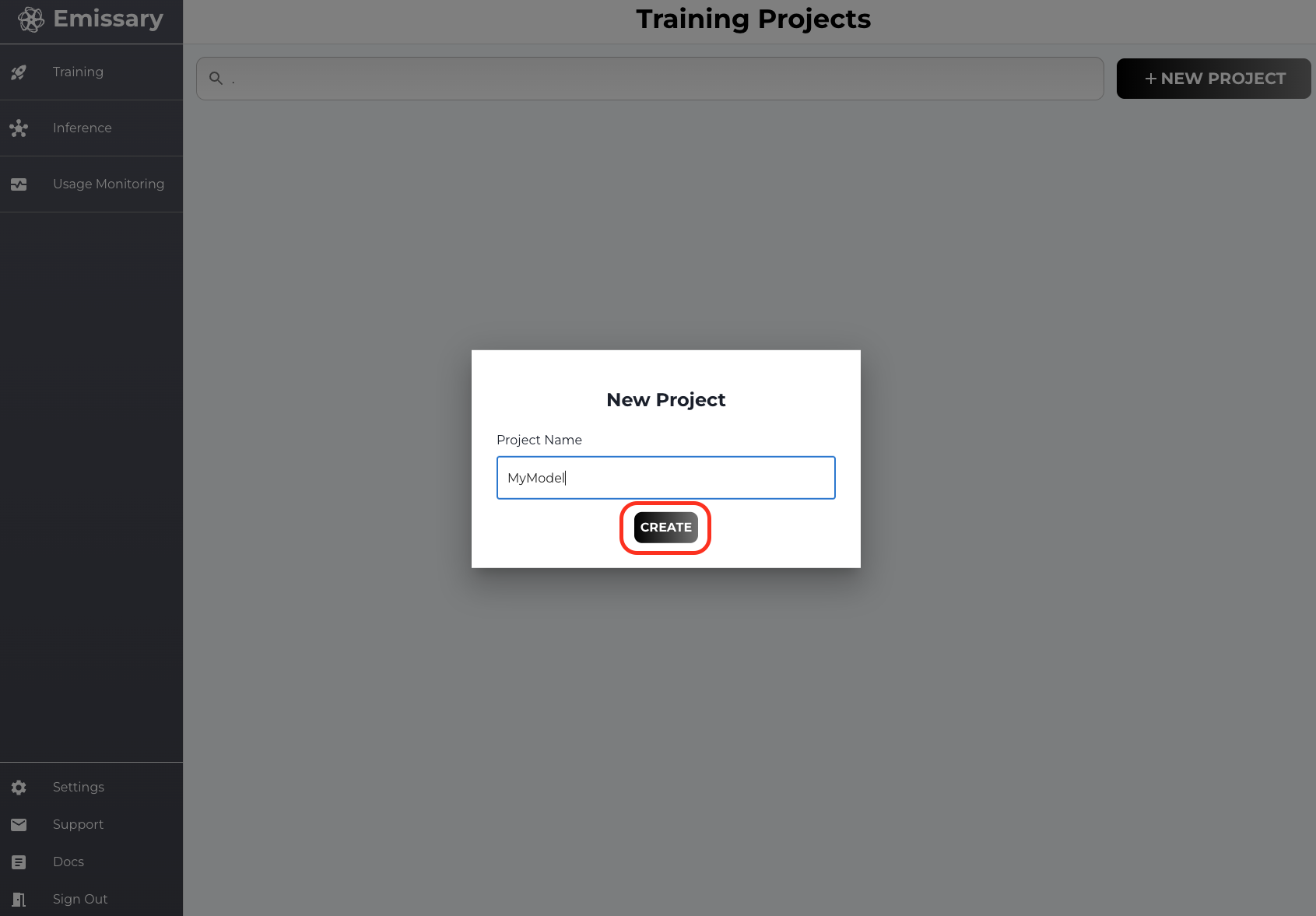
In the pop-up, enter a new training project name, and click CREATE.
Uploading Dataset
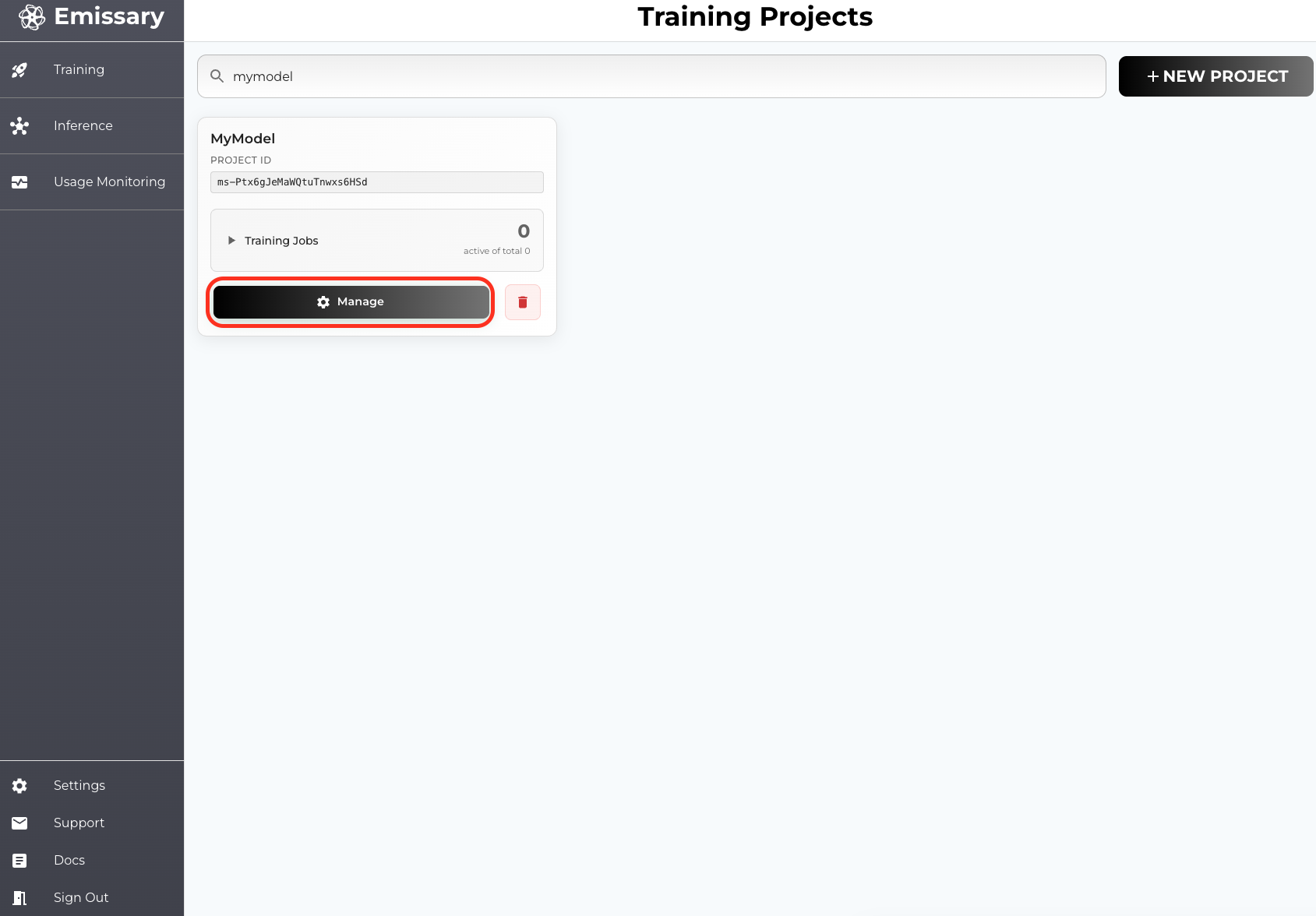
A tile is created for your task. Click Manage to enter the task workspace.
-
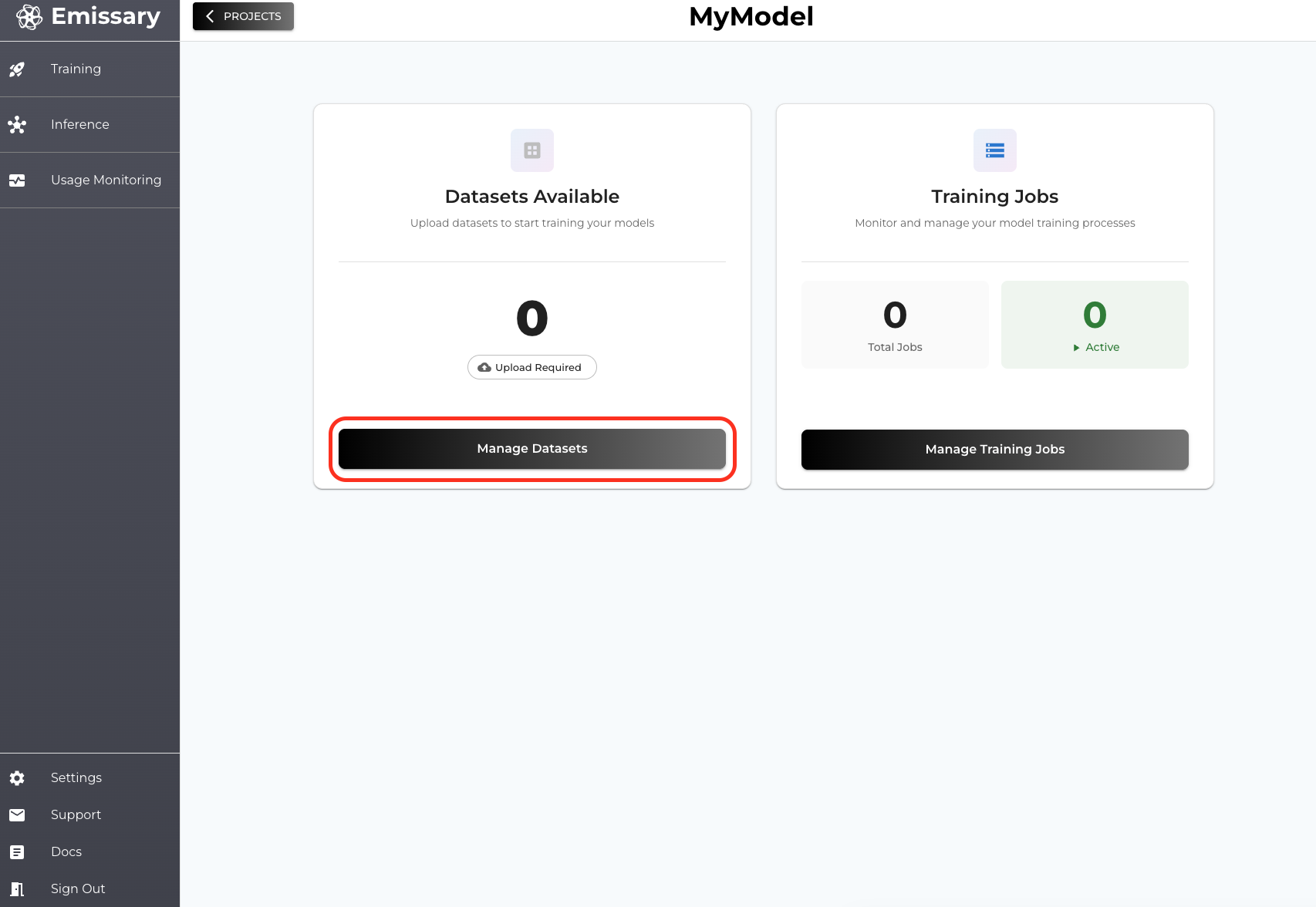
Click Manage Datasets in the Datasets Available tile.
-
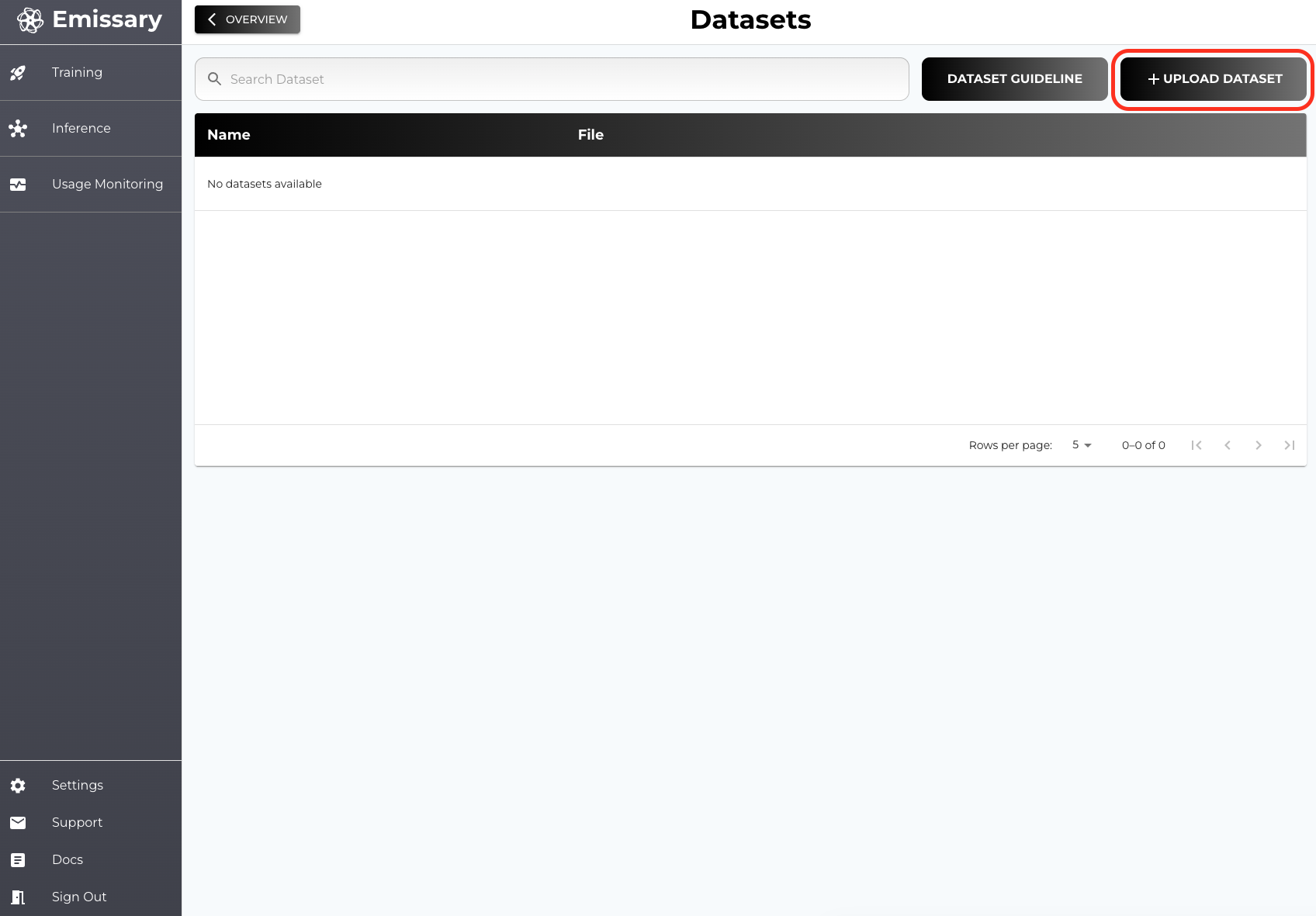
Click on + UPLOAD DATASET and select training and test datasets.
-
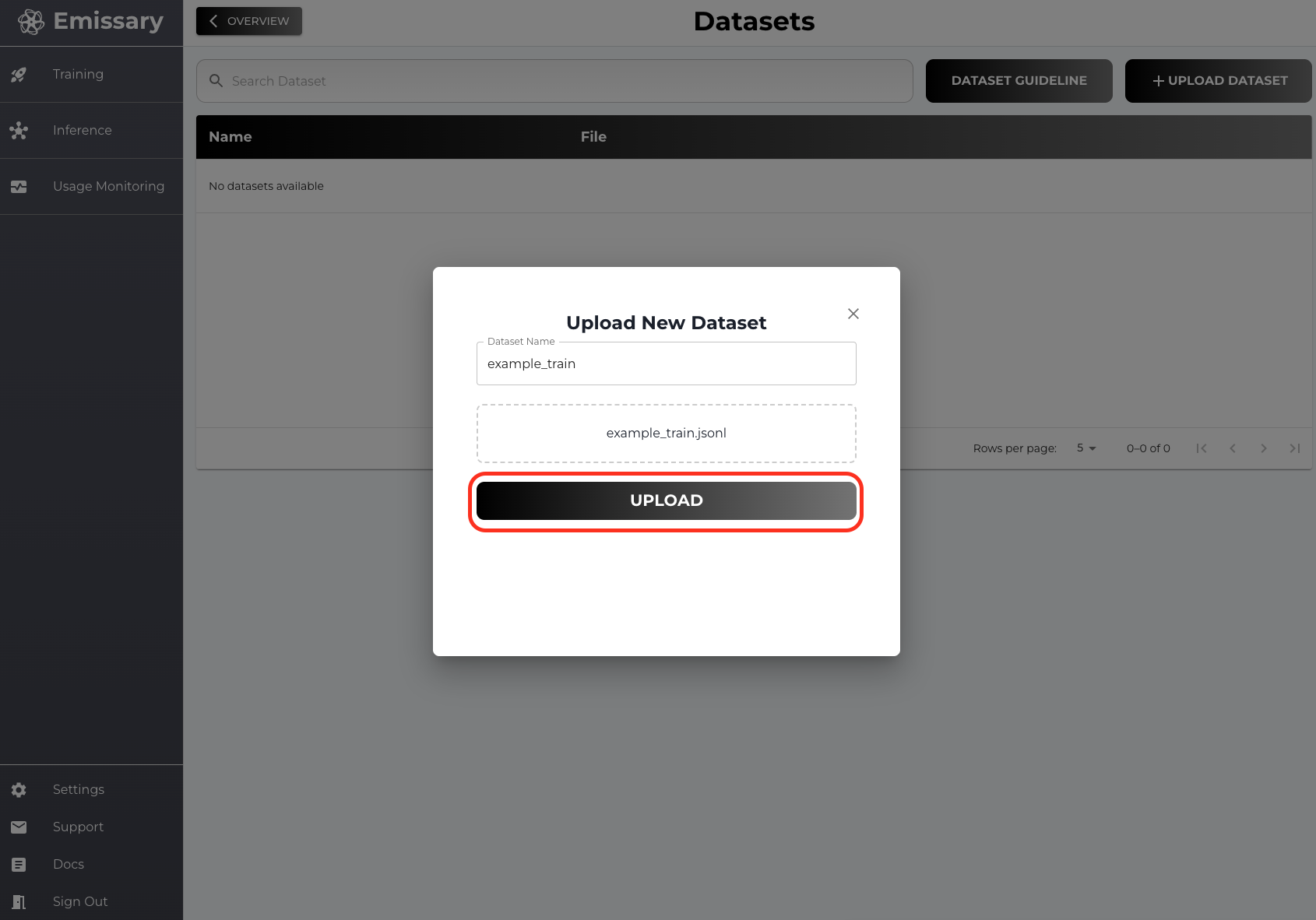
Name dataset and upload the file
4. Model Finetuning
Now, go back one panel by clicking OVERVIEW and then click Manage Training Jobs in the Training Jobs tile.
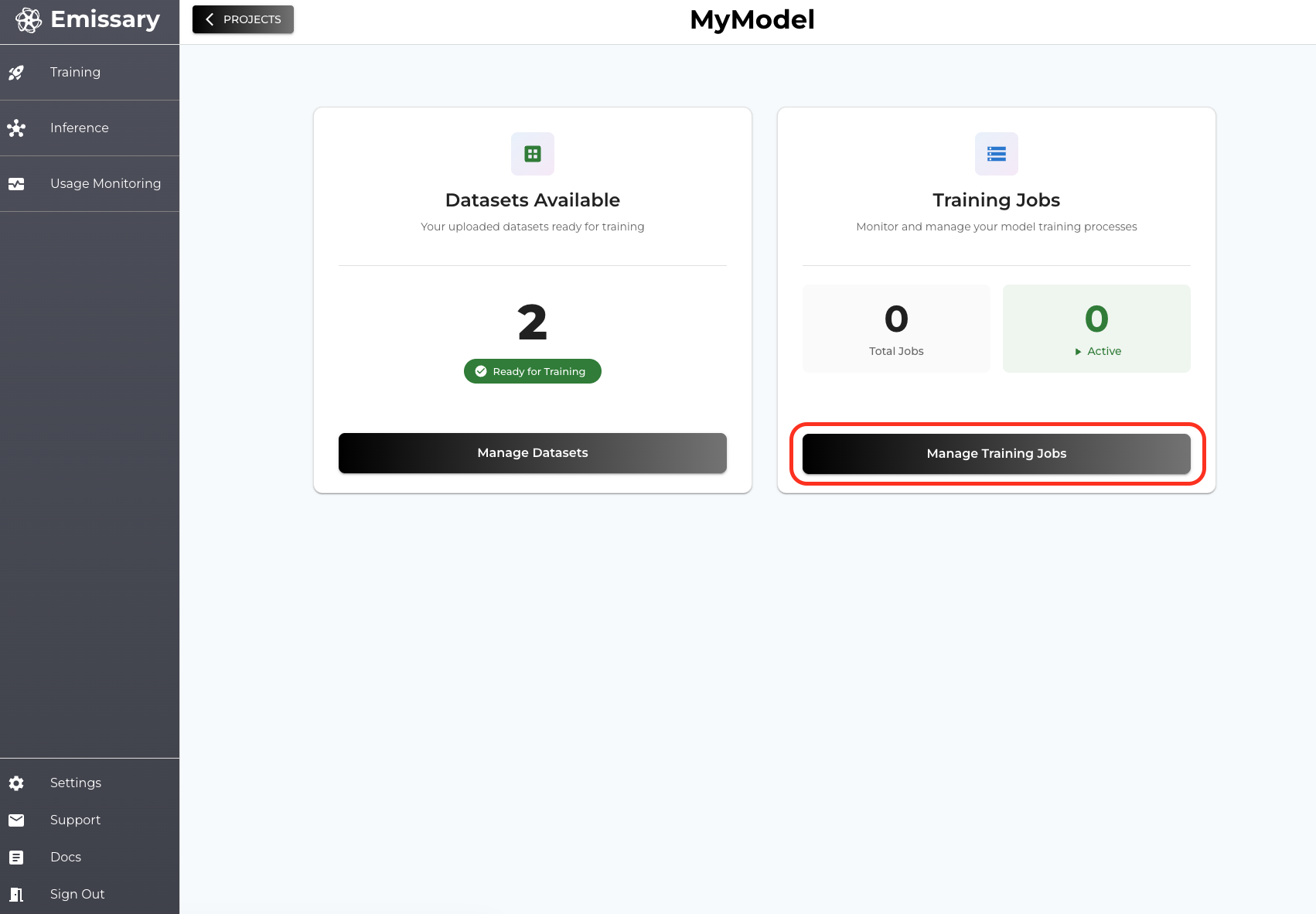
Click + NEW TRAINING JOB button and fill in the configuration
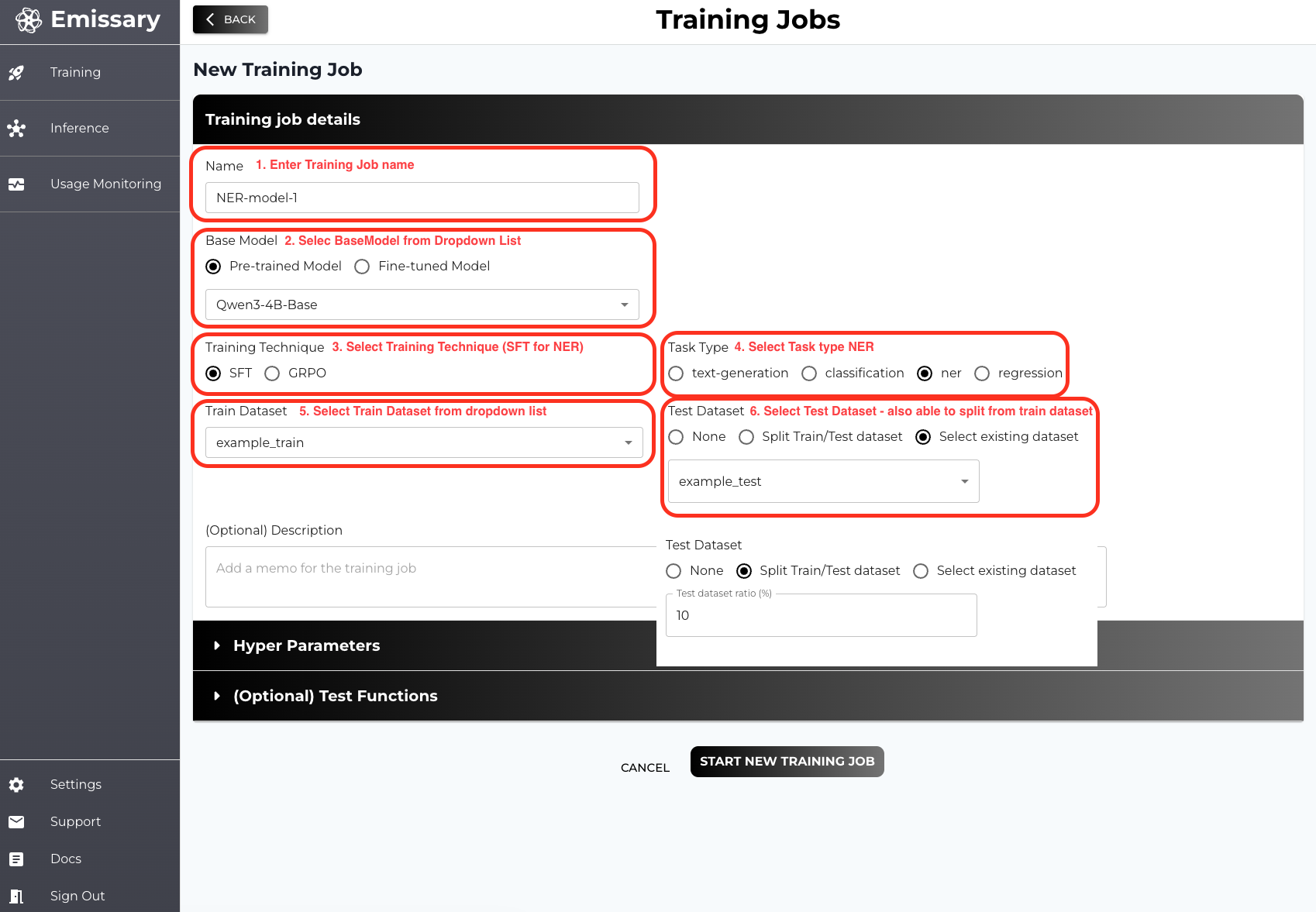
Required Fields
- Name: Name of your training job (fine-tuned model)
- Base Model: Choose the backbone pre-trained / fine-tuned model from the drop down list
- Training Technique Choose training technique to use, NER is only supported in SFT
- Task Type: Select task type ner
- Train Dataset: Select dataset you would like to train on the backbone model
(Optional)
-
Test Dataset: You can provide a test dataset which then will be used in testing (evaluation phase). If None selected, the testing phase will be skipped.
- Split Train/Test Dataset: Use ratio of train dataset as a test set
- Select existing dataset: Upload separate dataset for test
-
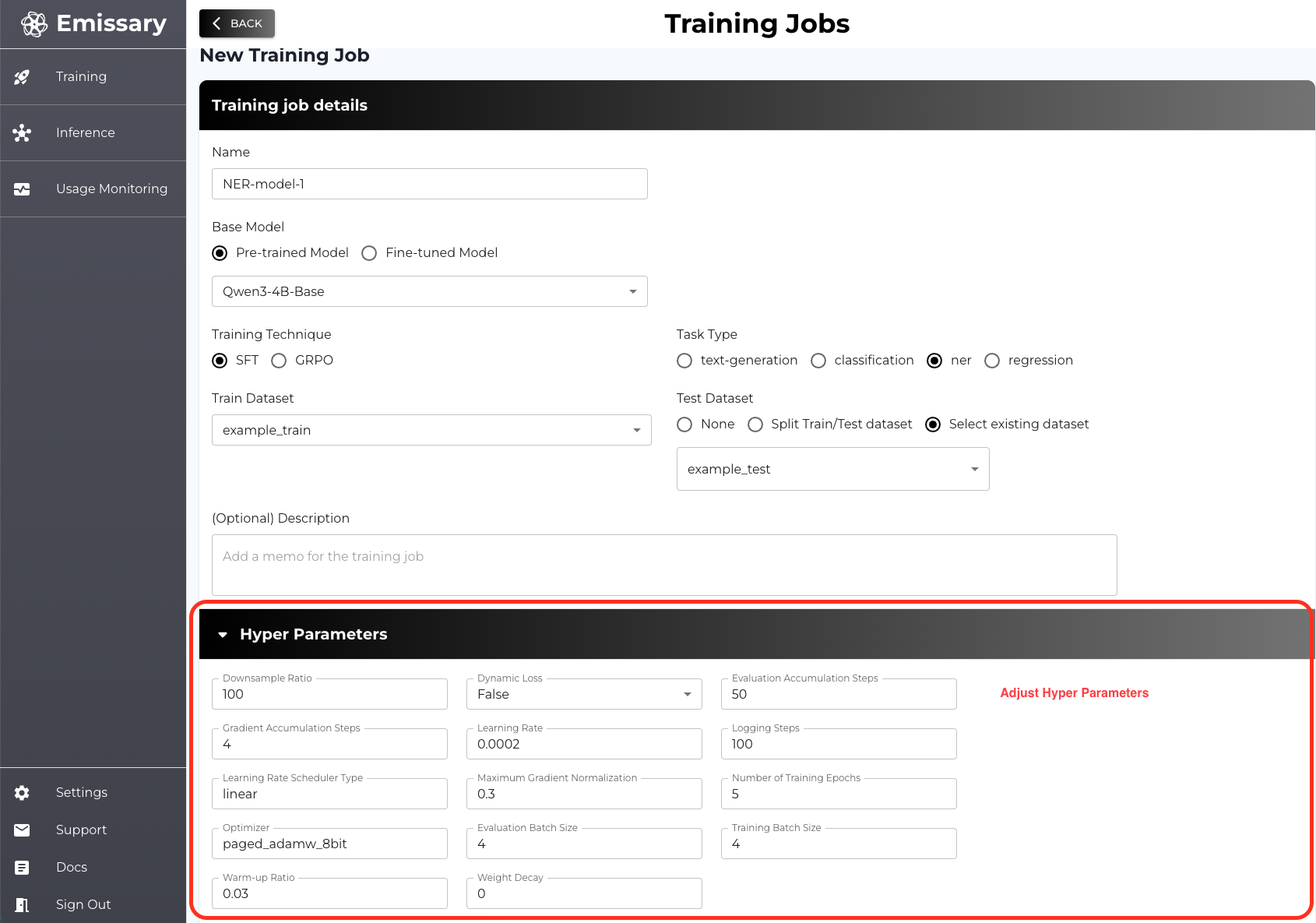
Hyper Parameters: Hyper Parameters’ value is all set with Good default values but you can adjust the value if you want.
-
Test Functions: When you select any Test Dataset option, you can also provide your own test functions which provides you an aggregate results. We recommend to try our
ner json eval auto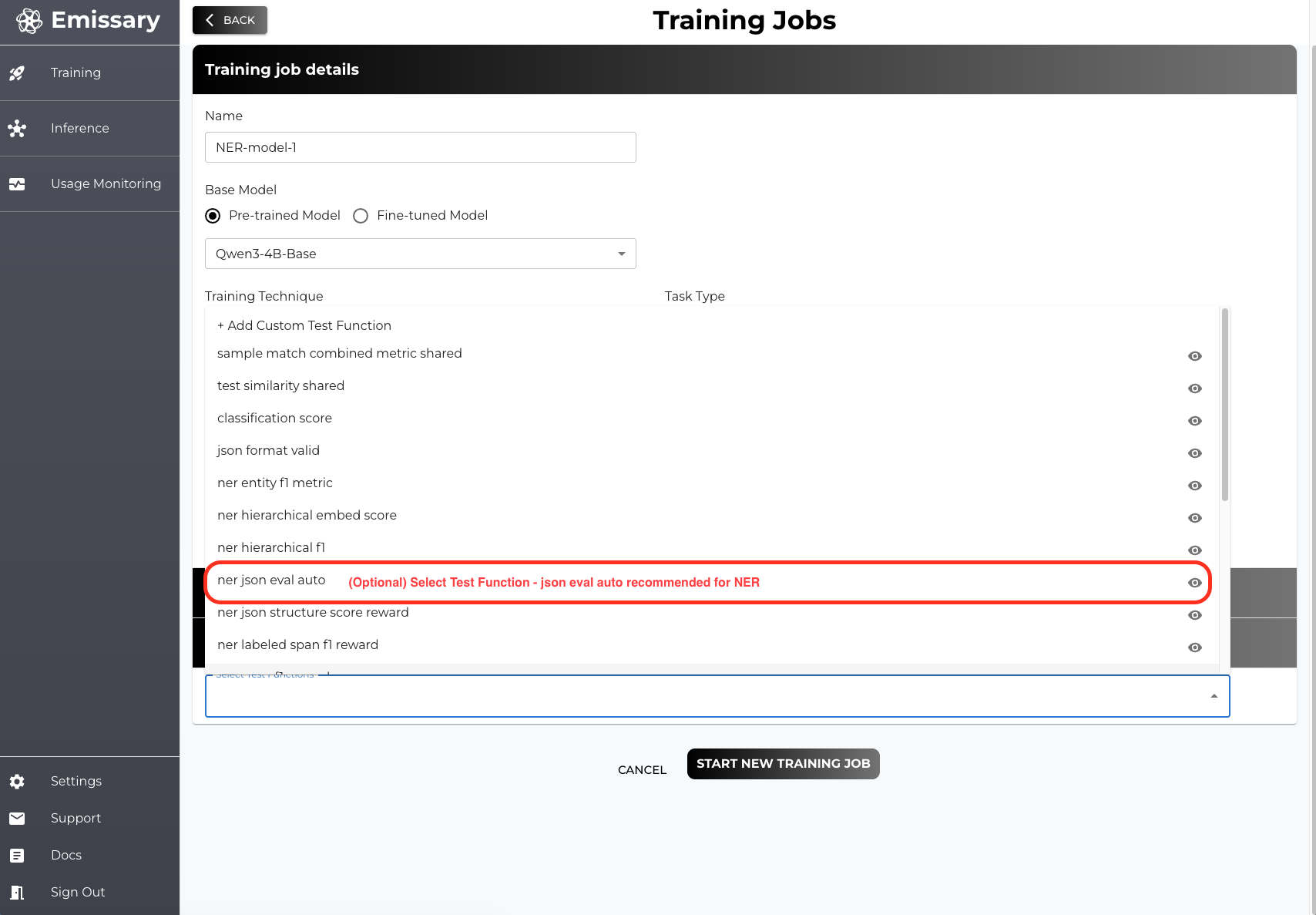
After initiating the training job you will see your training job on the list
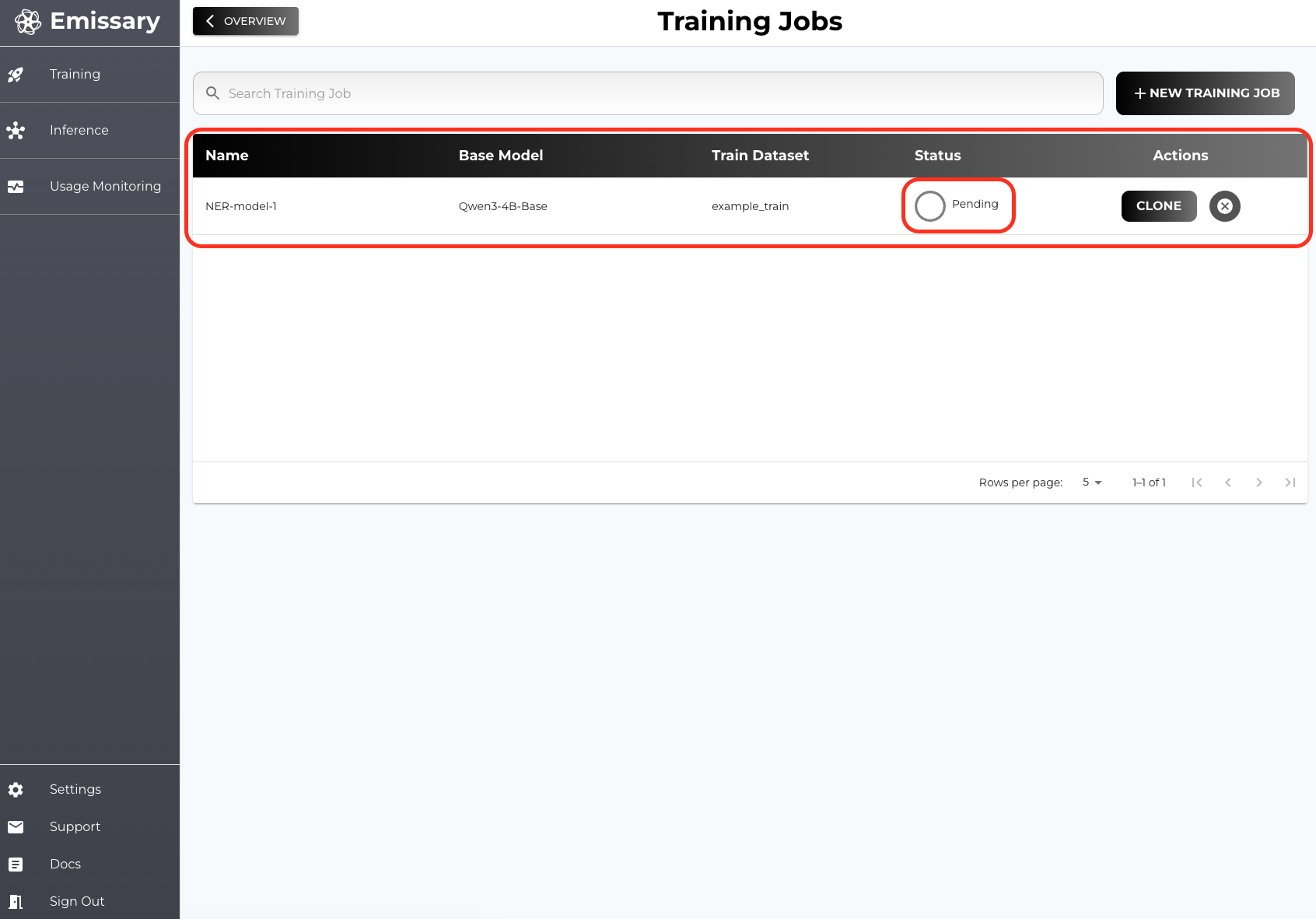
If you click the row you will be navigated to the training job detail page
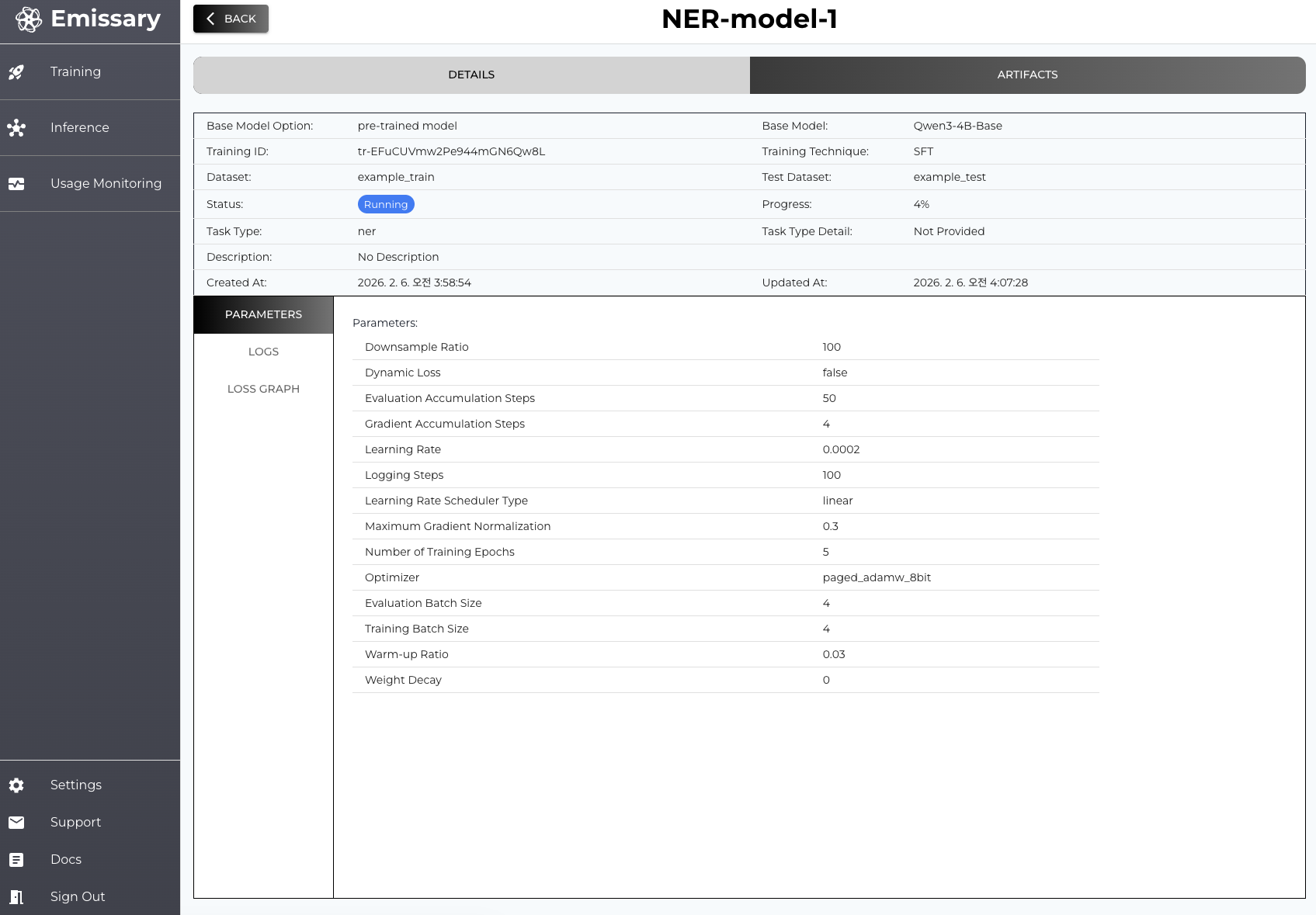
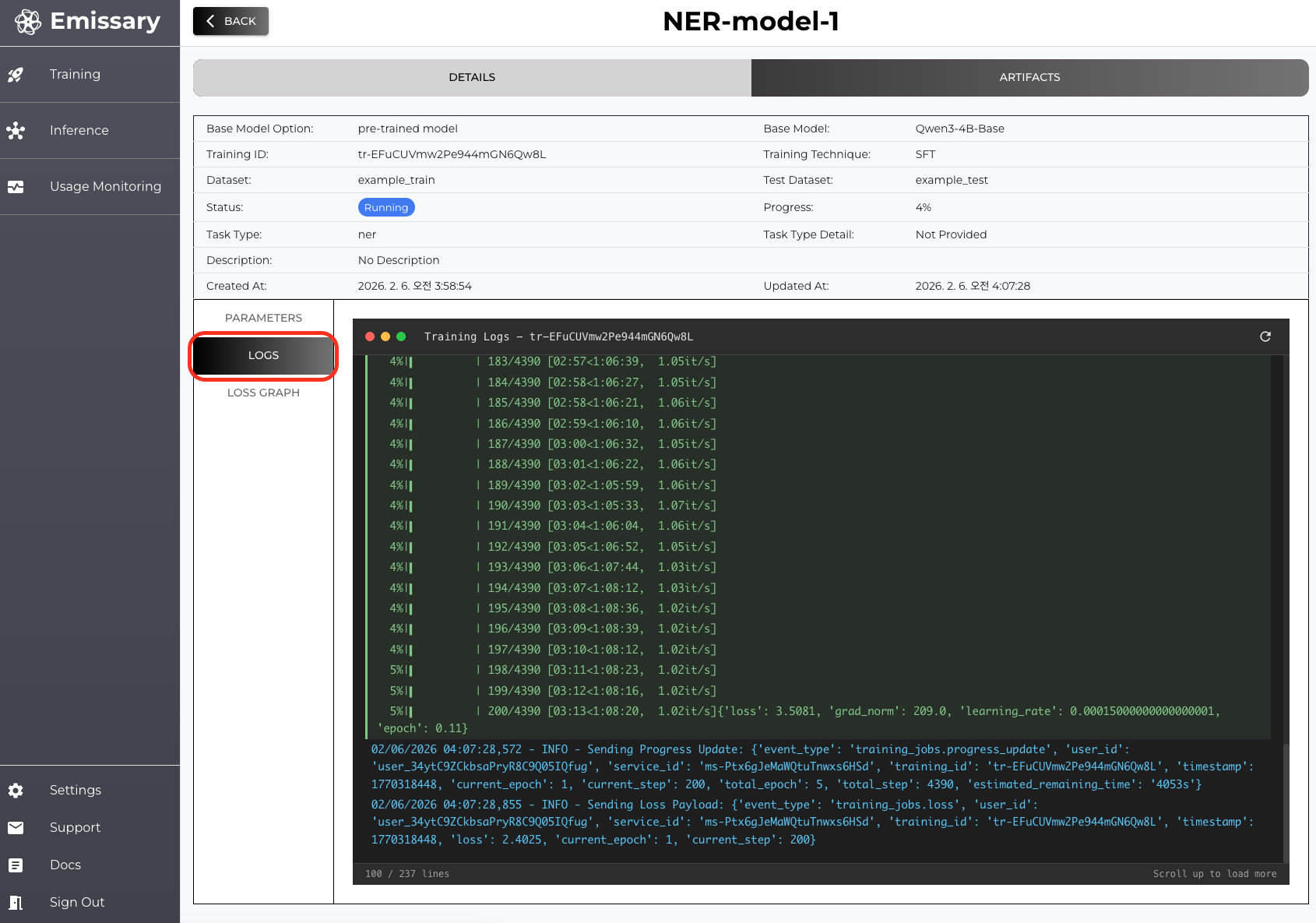
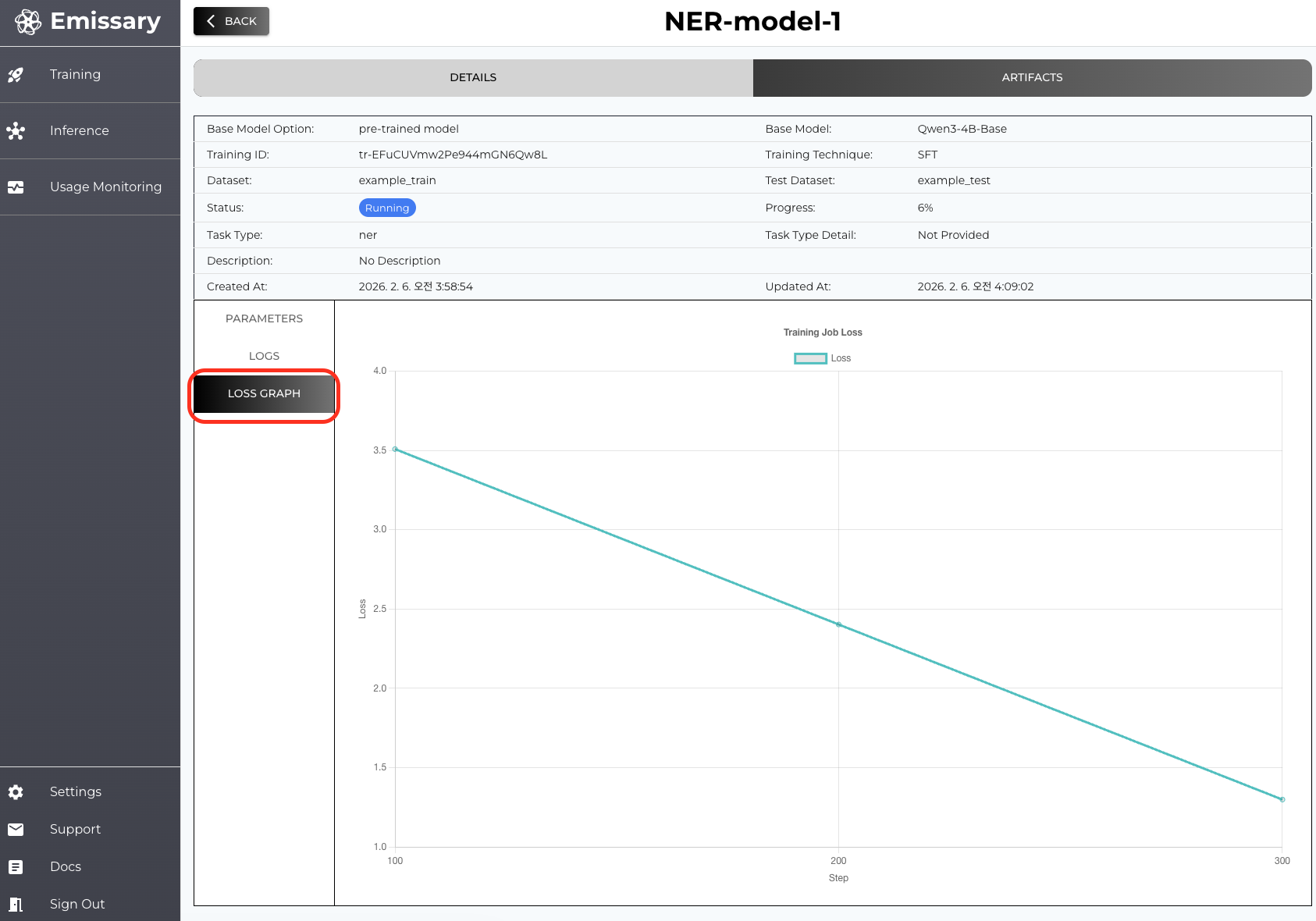
You can check the Status and Progress from the summary and you can also check the live logs and loss graph when you click the tab on the side
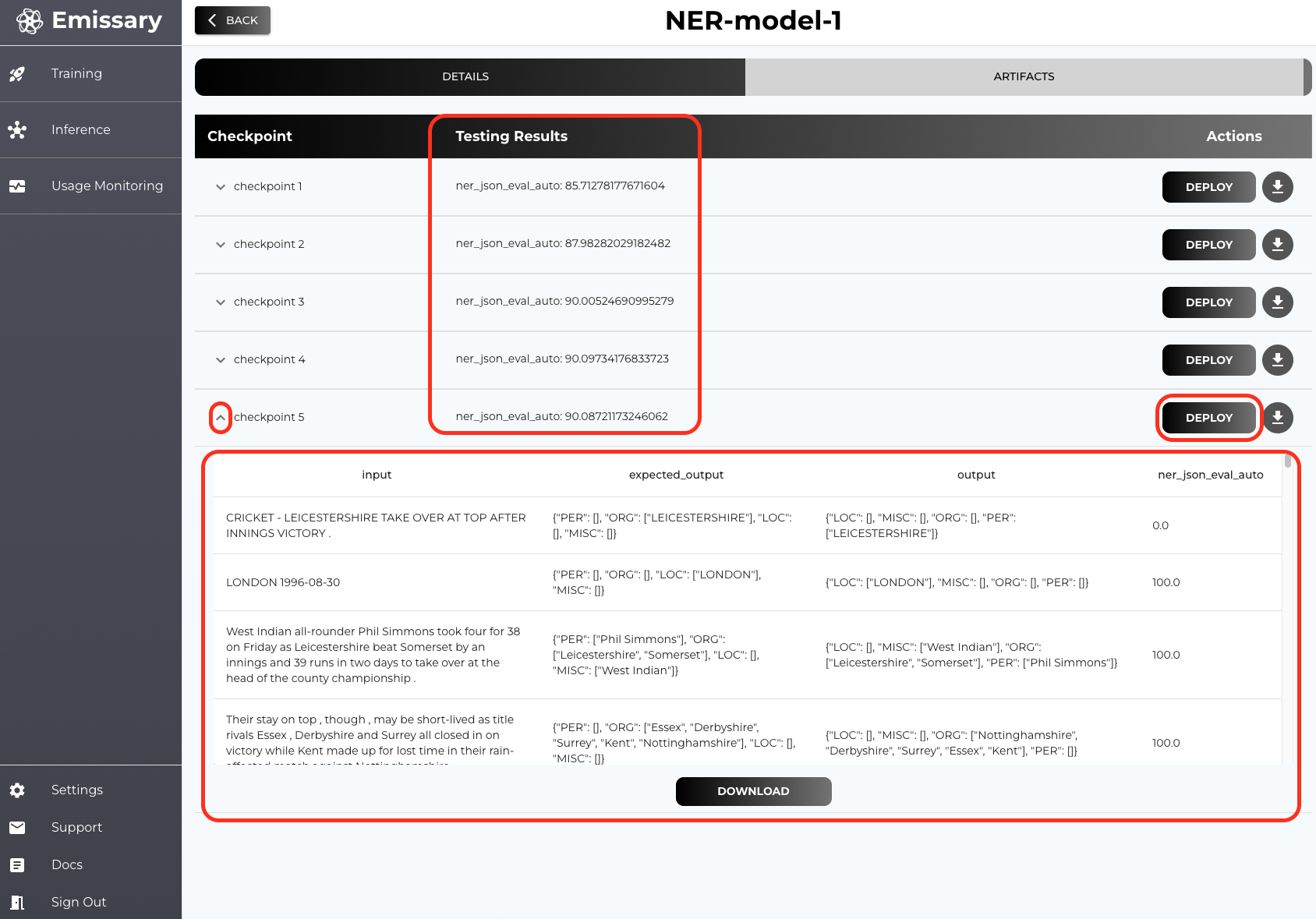
Go to Artifacts tab to check checkpoints and test results (if test dataset and functions provided).
5. Deployment
From the Artifacts tab you can deploy any checkpoint from the training job by hitting DEPLOY button.
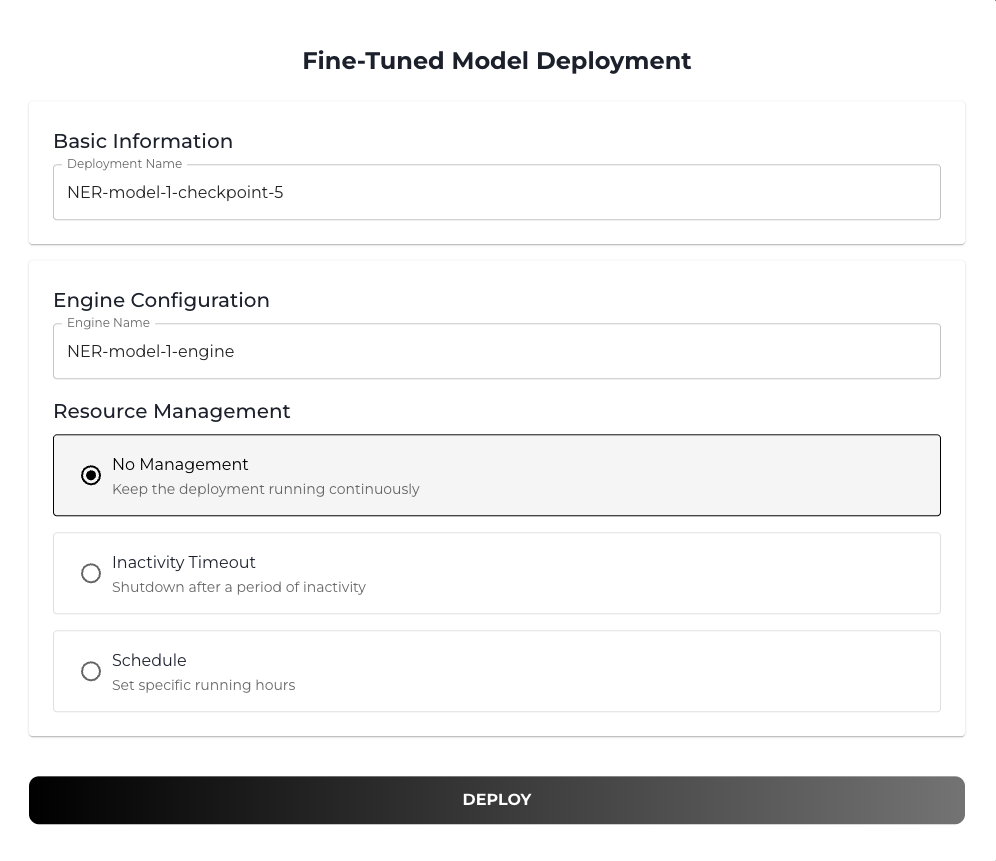
(Optional) You can also set resource management when creating a deployment. Setting a inactivity timeout will shutdown your deployment (inference engine) after a period of inactivity. Also you can schedule your deployment to be run in specific date and time.
Once you initiate your deployment you go to Inference dashboard and you will see your recent / previous deployments.
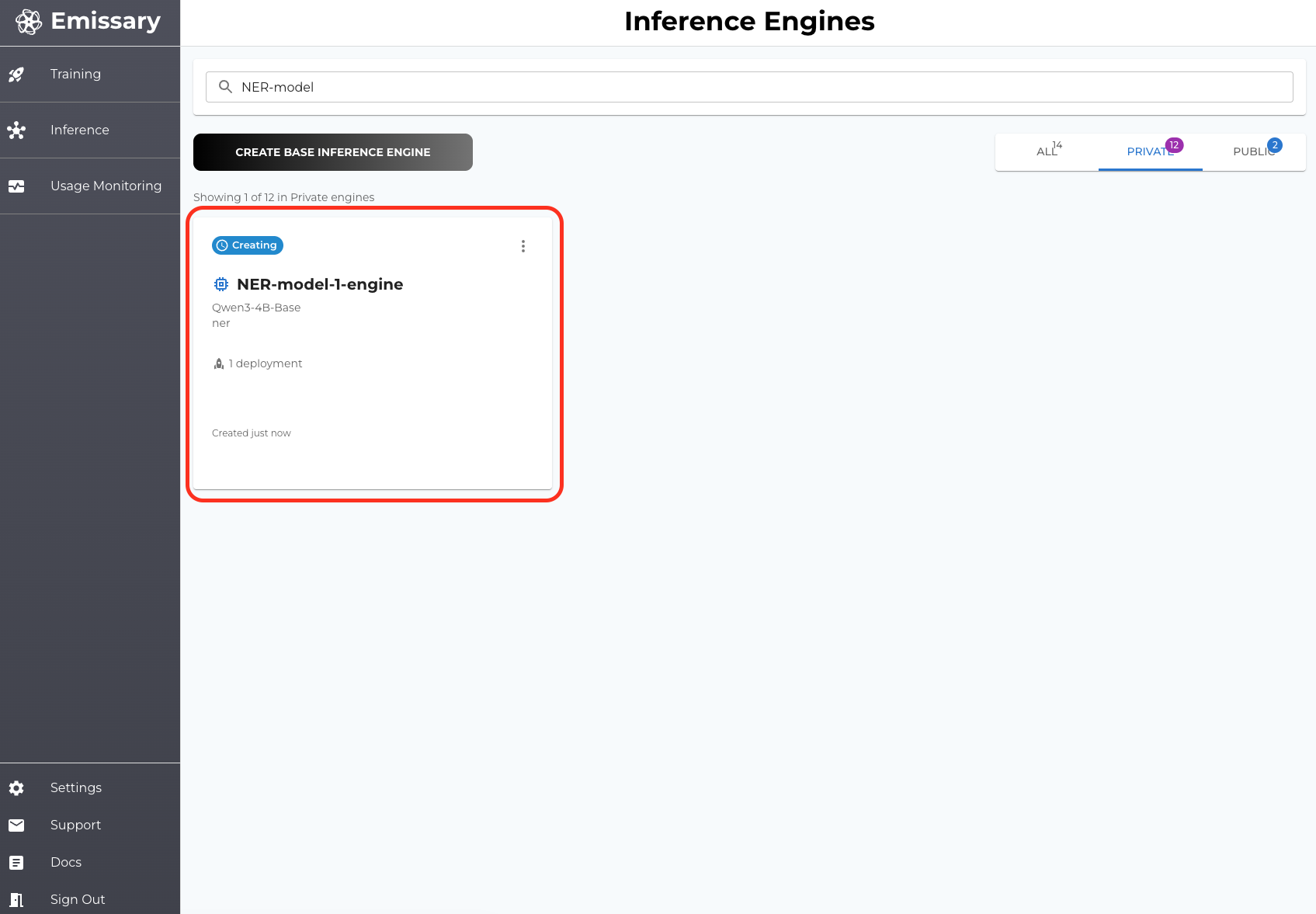
By clicking the card you can see the details of your deployment (inference engine).
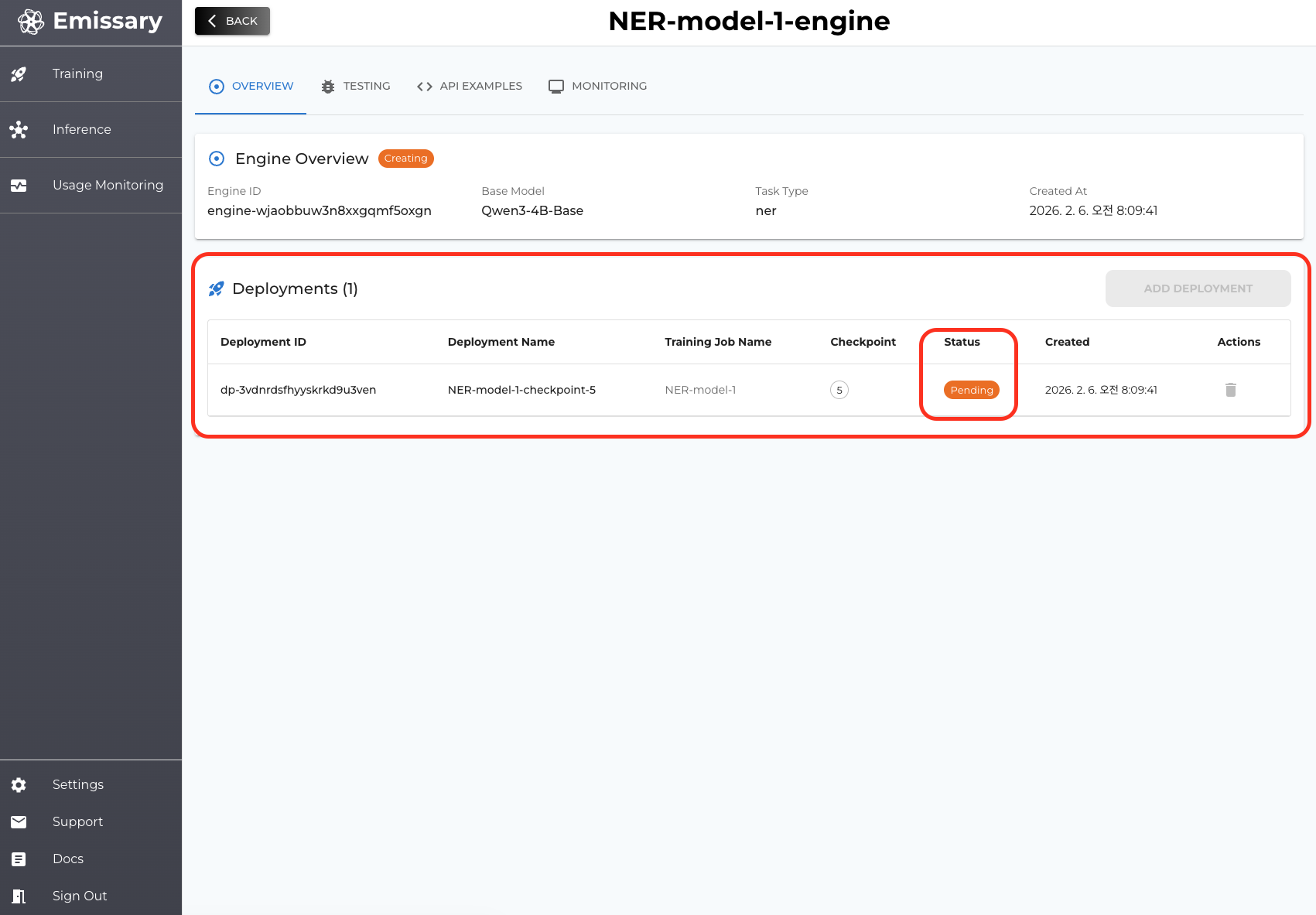
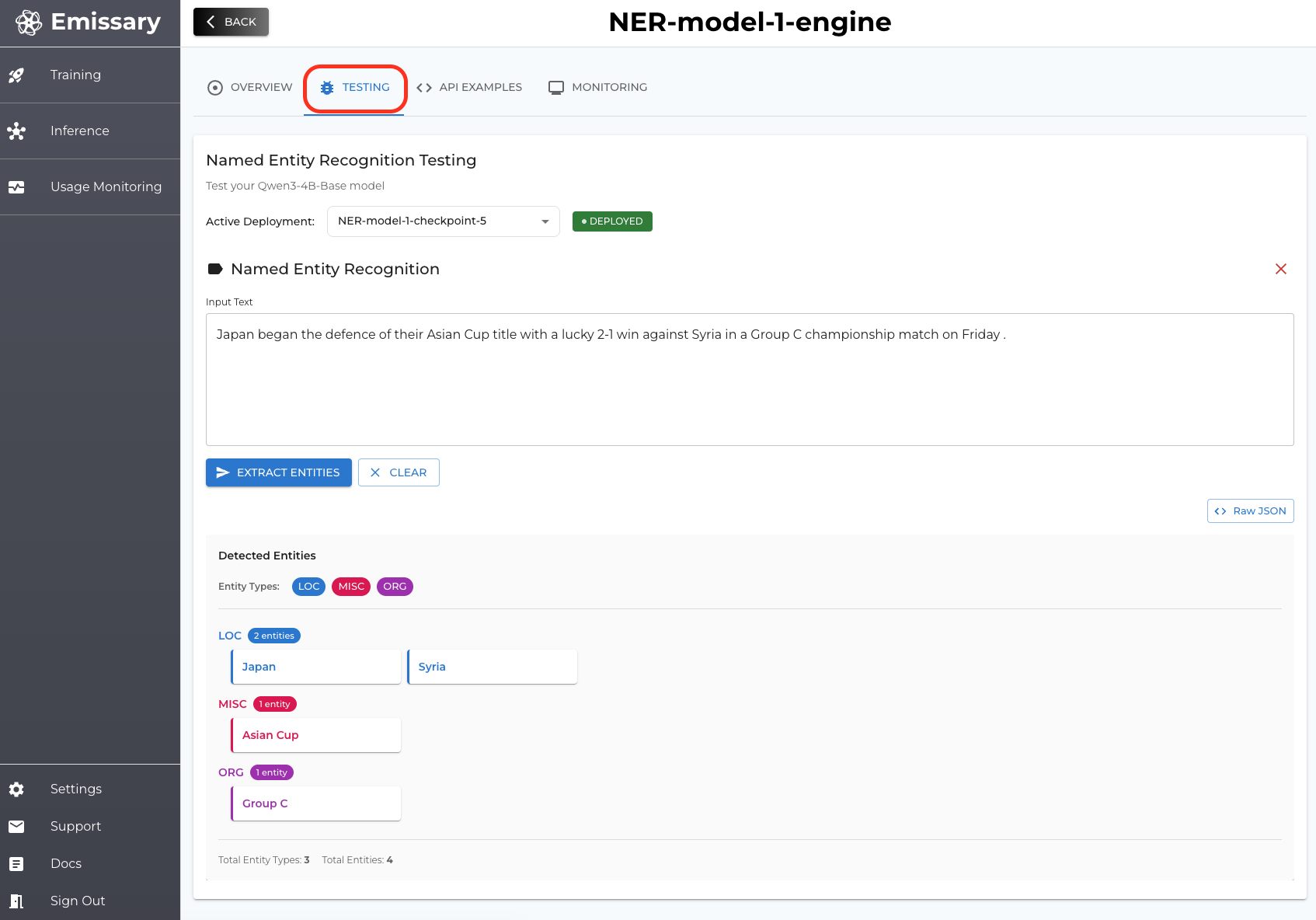
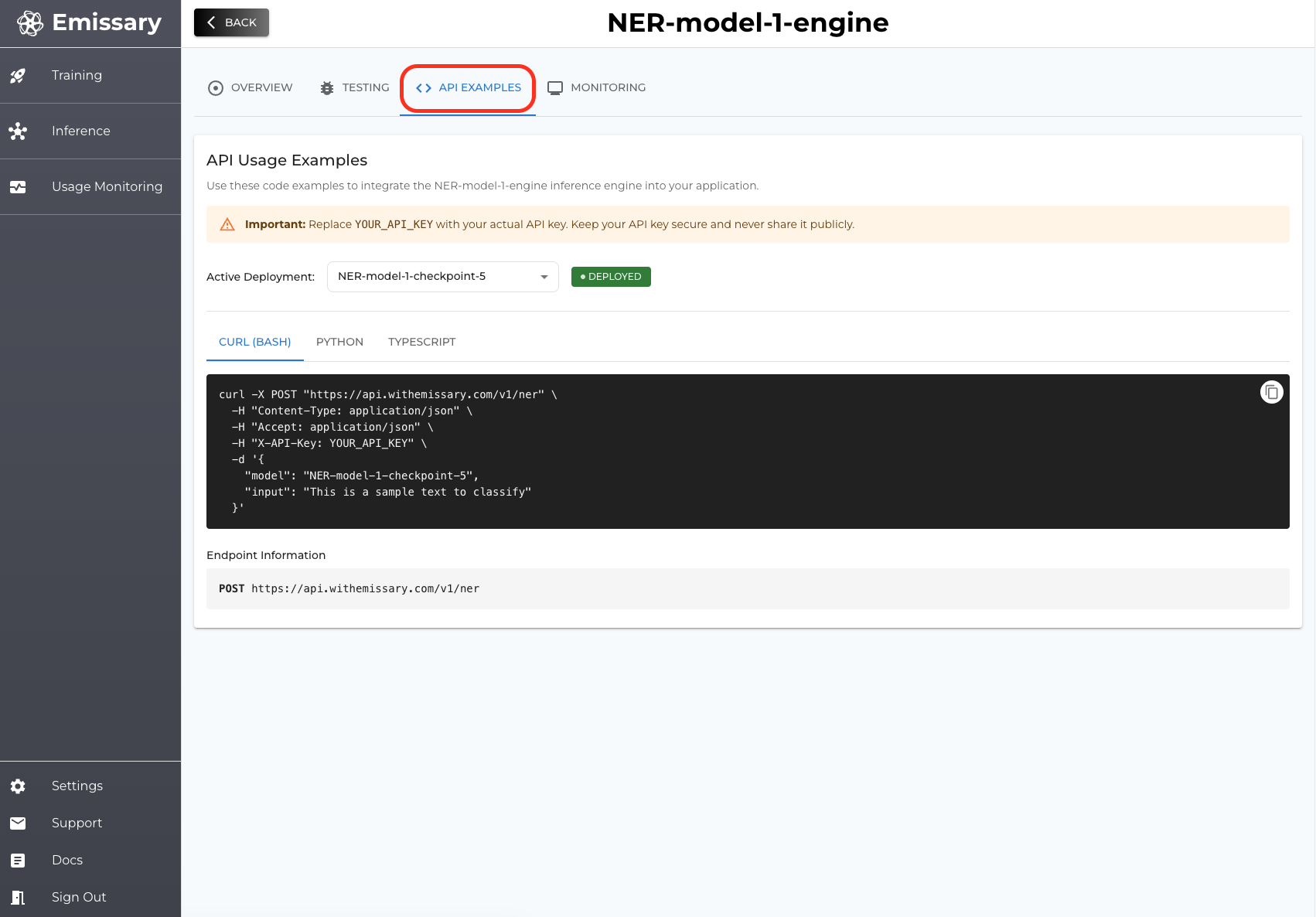
Once your deployment status becomes Deployed then it means your inference server is ready to be used. You can test your deployment on Testing tab (UI) or you can also call by API referring the API examples tab.